Start in Meerie
1
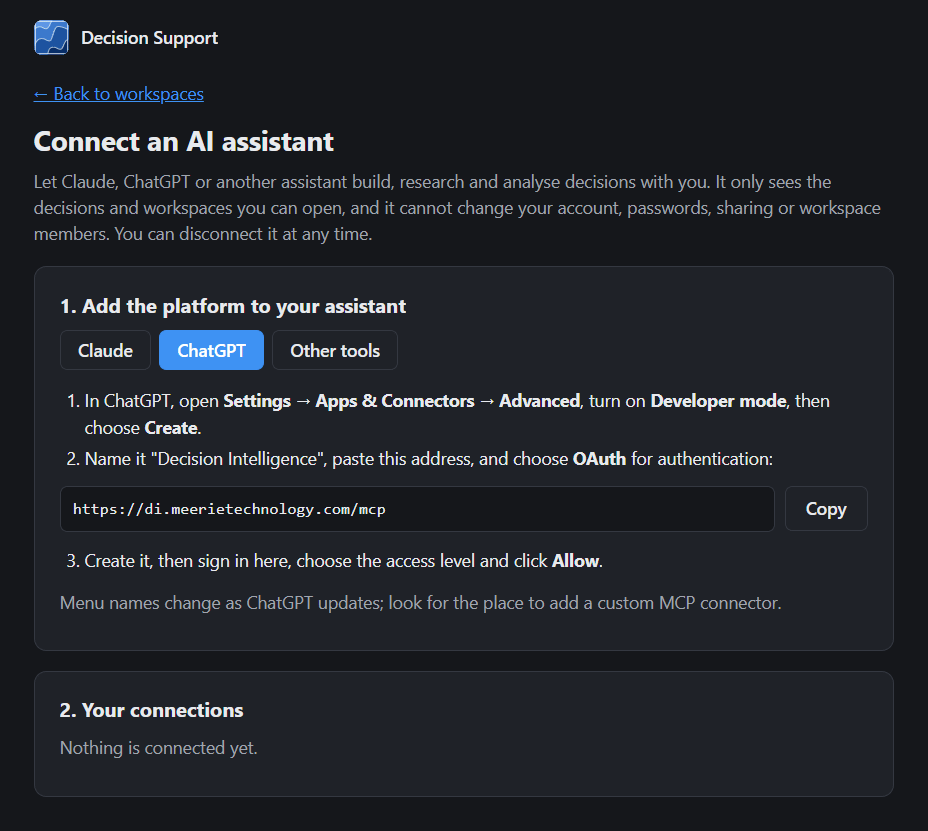
Open Connect AI assistant
Open the account menu, then choose Connect AI assistant.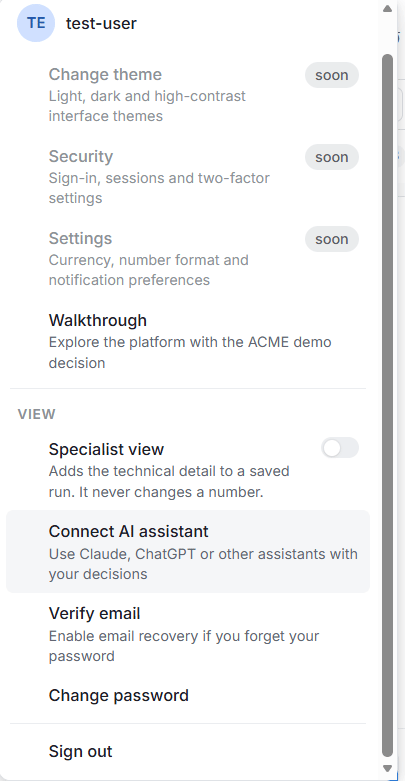
2
Pick your assistant
The Connect an AI assistant page has a tab for Claude, ChatGPT and Other tools. Each tab shows the steps and the address to copy. Click Copy to copy the address.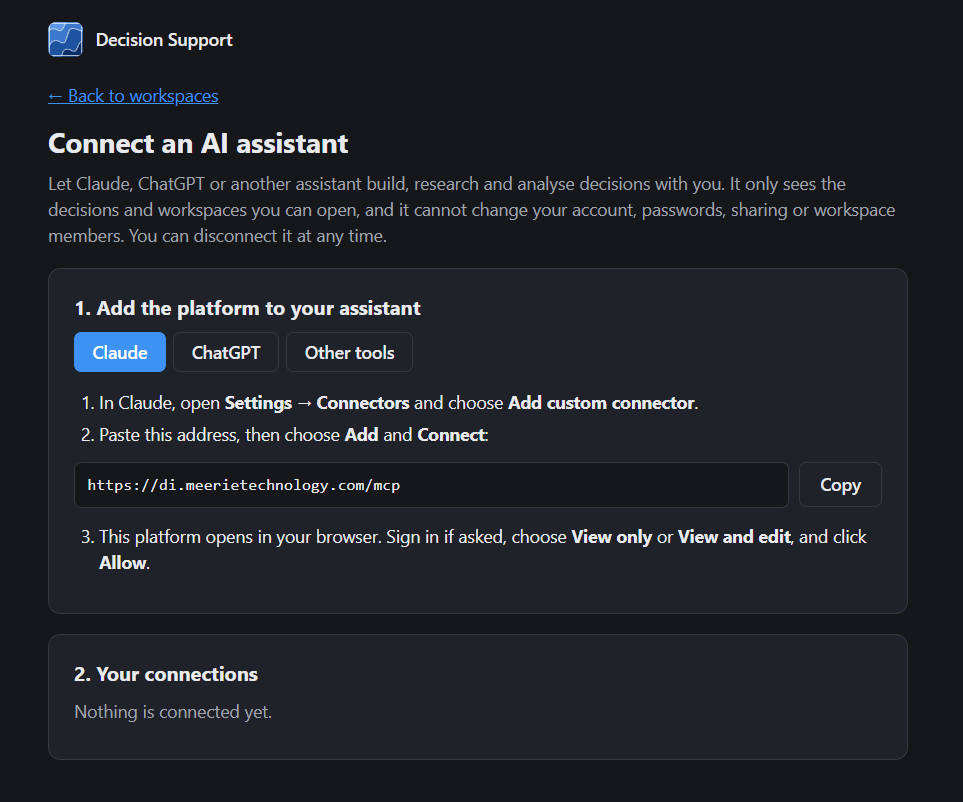
- Claude
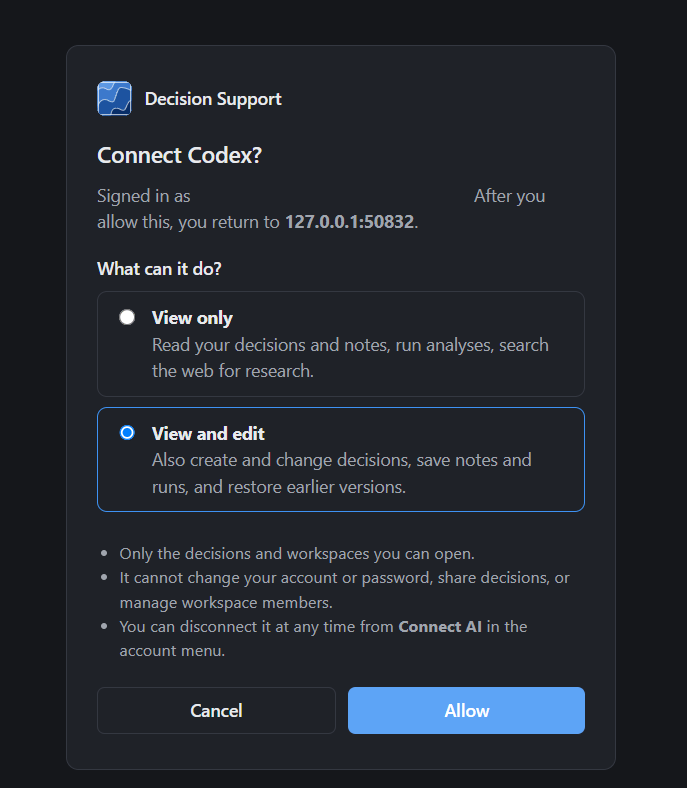
- Codex
- ChatGPT
- Other tools
1
Add a custom connector in Claude
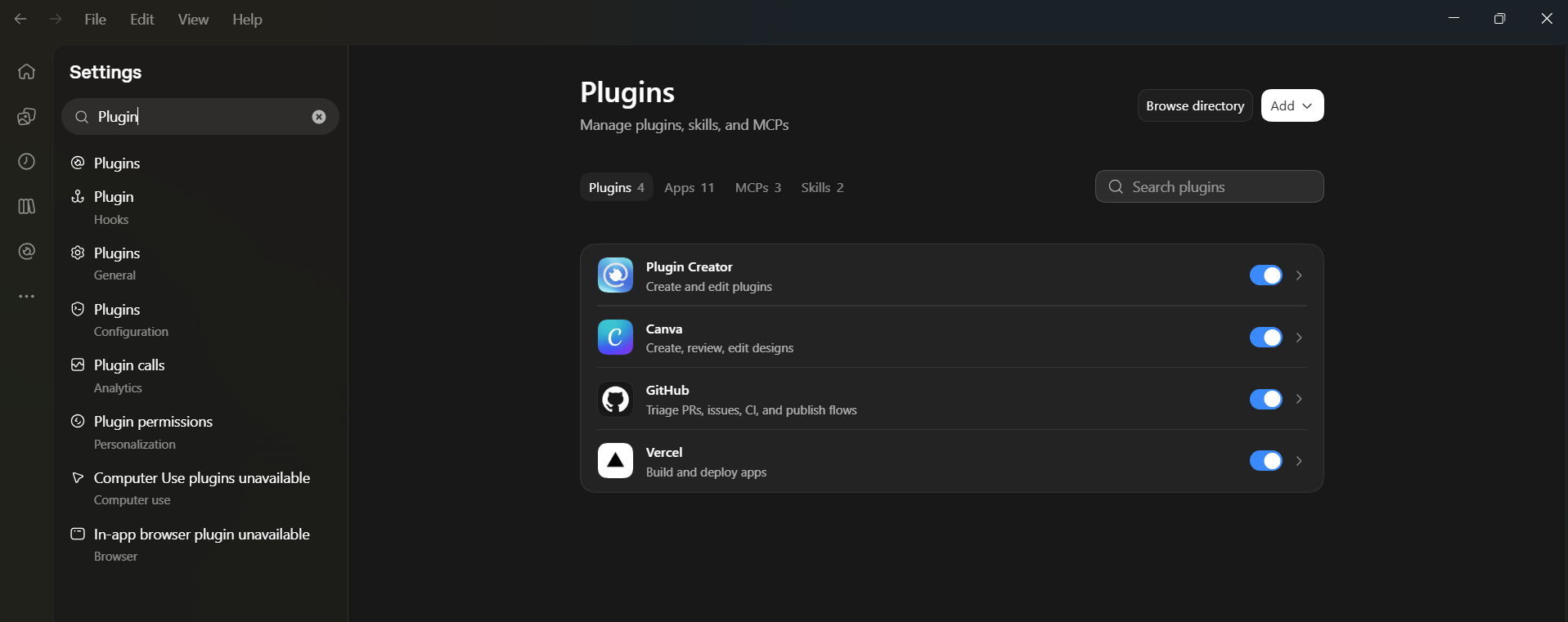
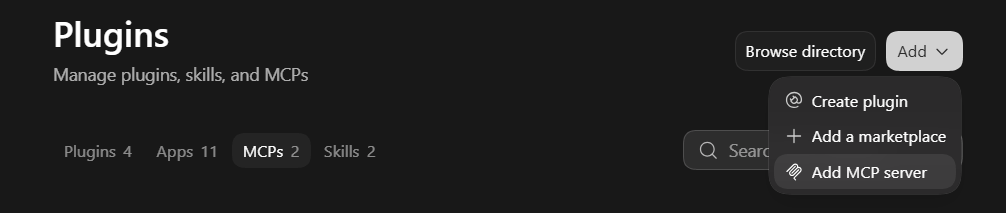
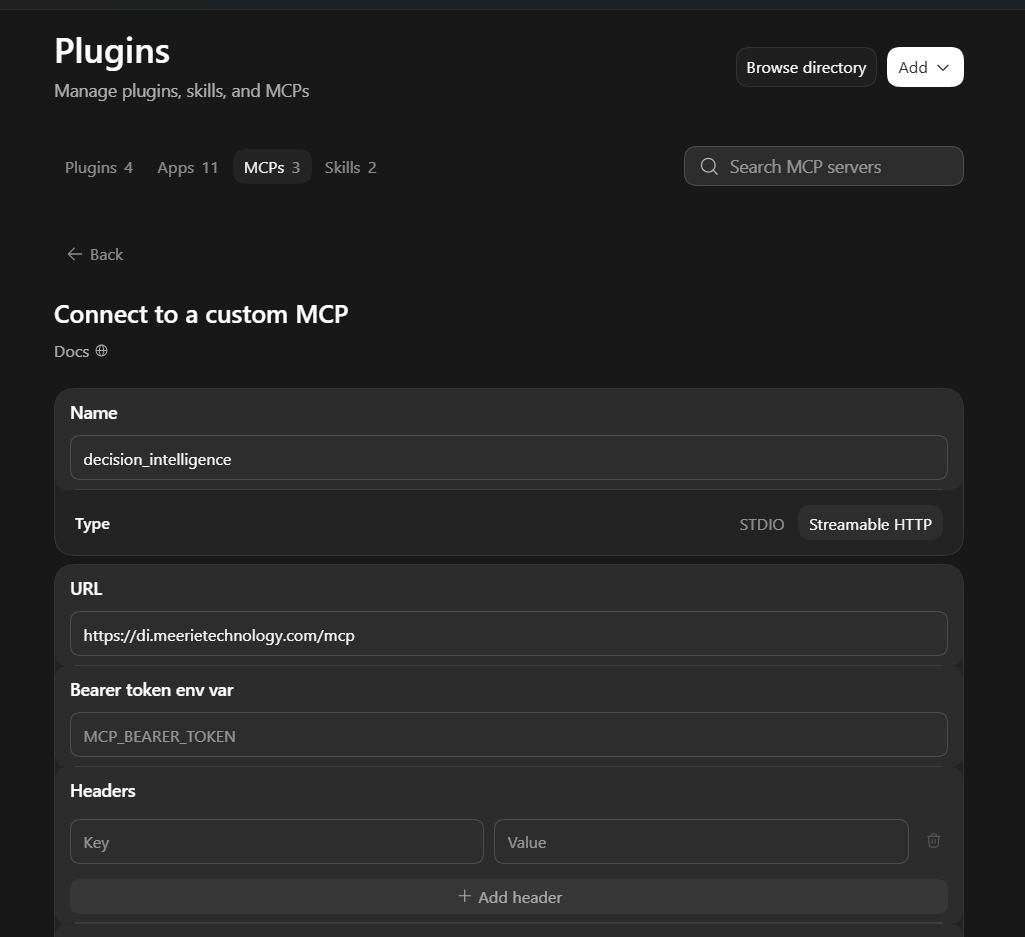
In Claude, open Settings, then Customize, then the Connectors tab. Click Add, then Add custom connector.Type a name, for example 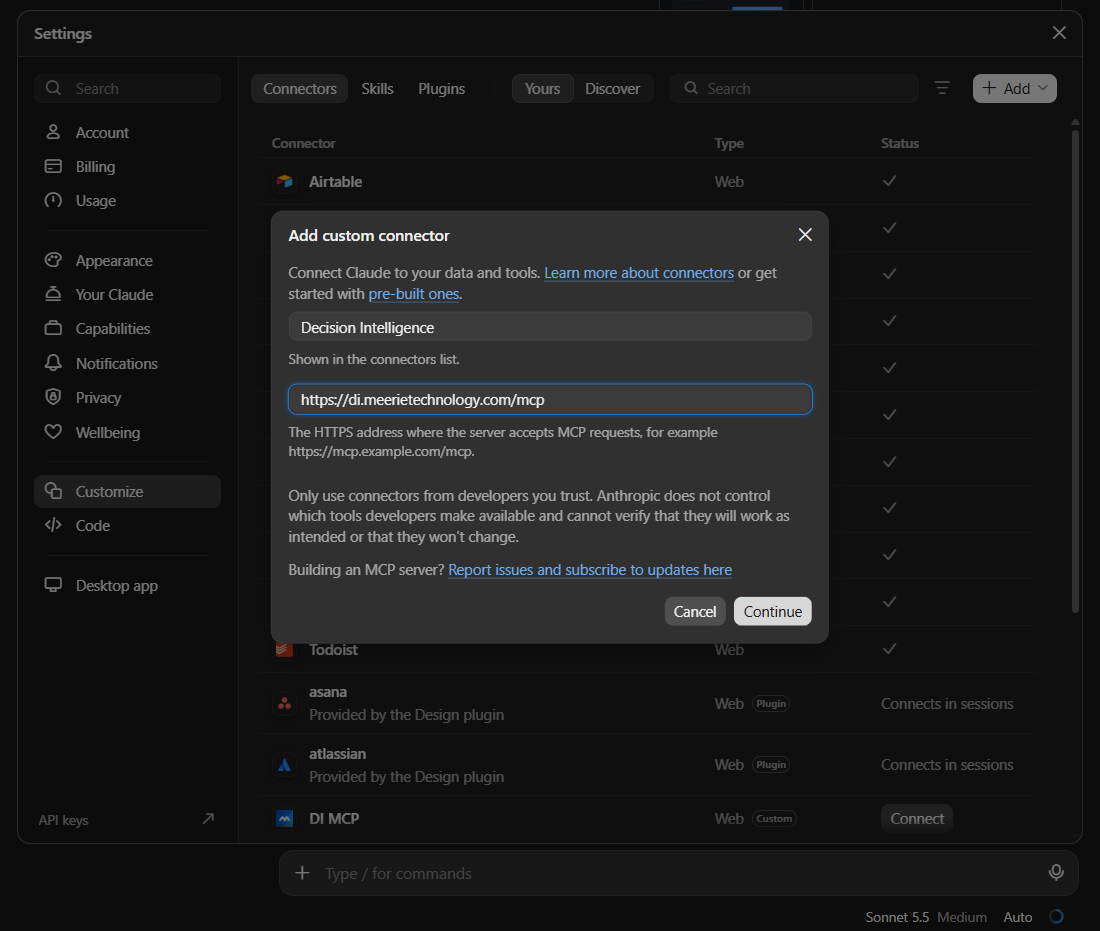
Decision Intelligence. Paste the address. Click Continue.2
Continue in your browser
Your browser opens a page that says Finish connecting a connector? Click Continue connecting.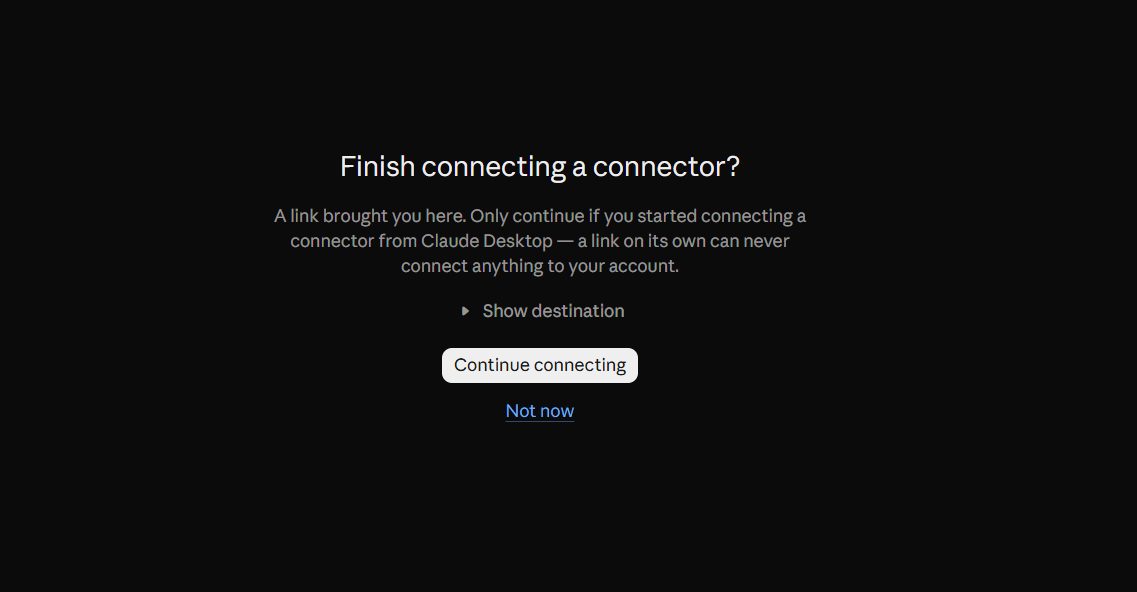
This page only appears because you started in Claude. If you did not start it, click Not now.
3
Choose what Claude can do
Sign in to Meerie if you are asked. On the Connect Claude? page choose View only or View and edit, then click Allow.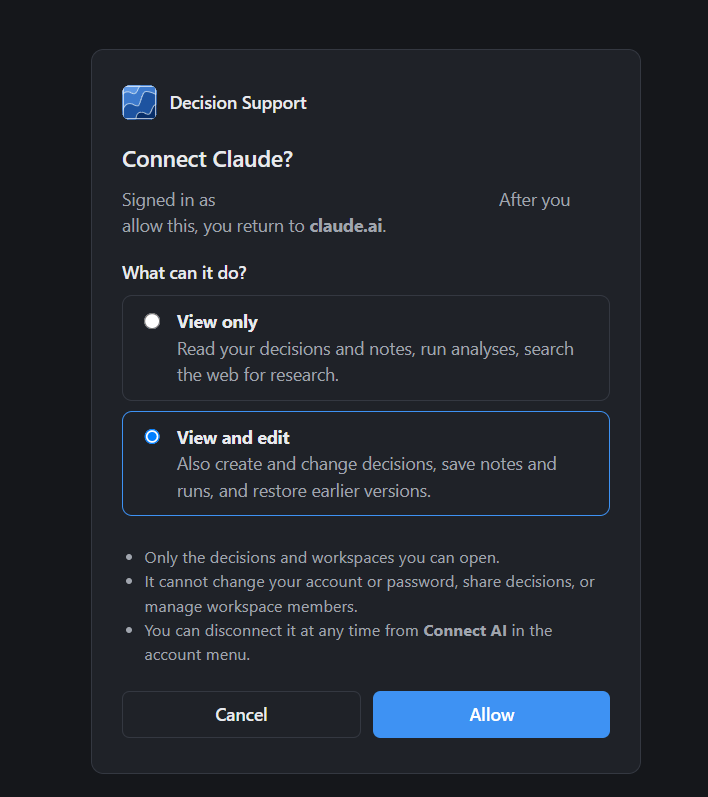
4
Check that it is connected
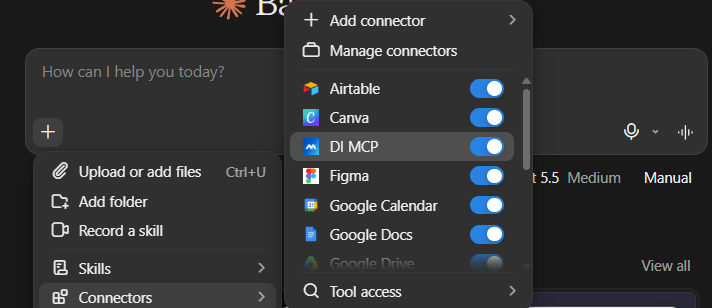
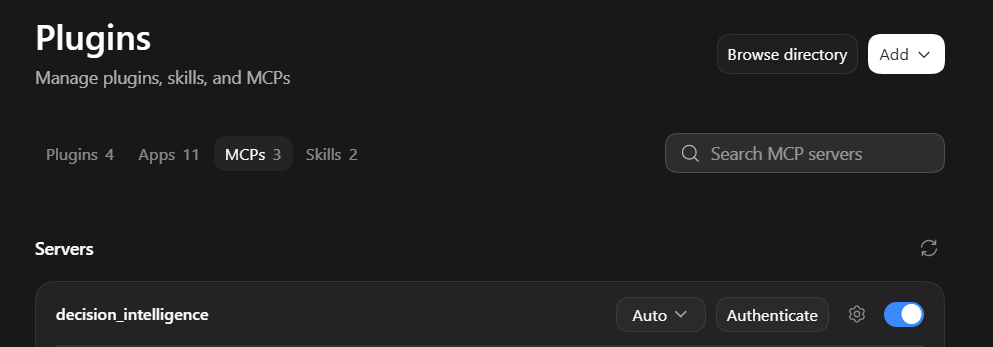
Back in Claude, the connector is listed in Settings, Customize, Connectors. Open it to see its address and Tool permissions. Each tool has its own permission buttons.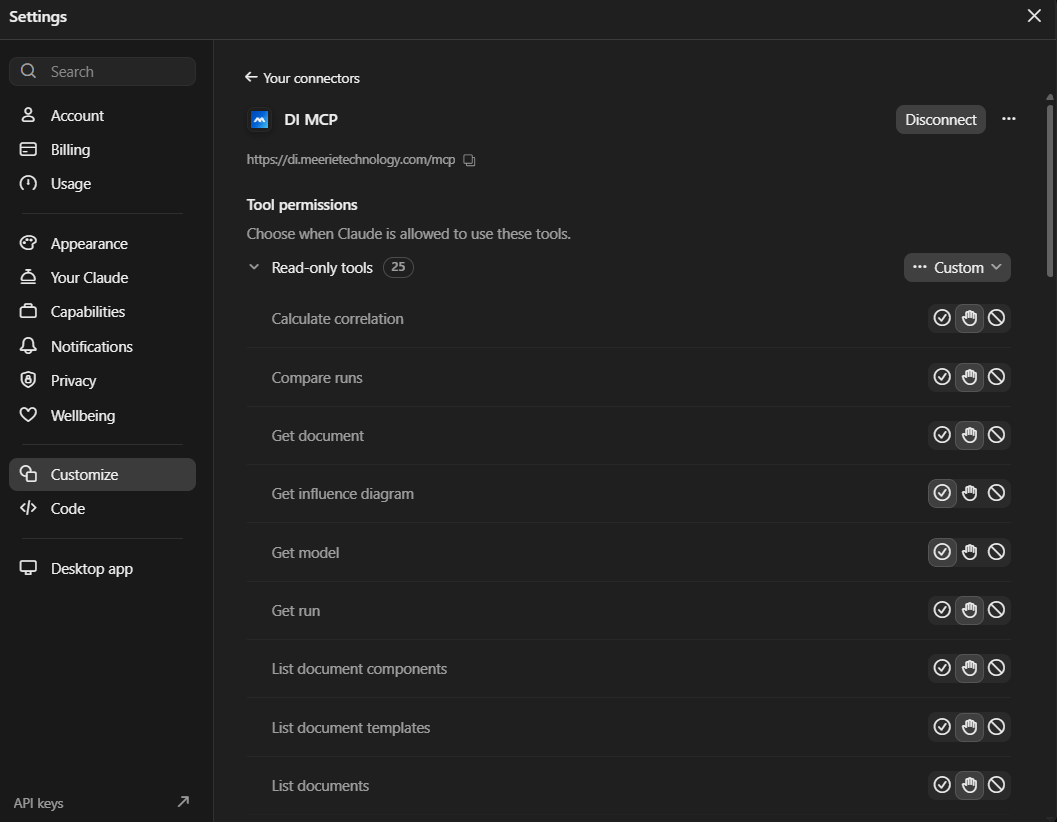
5
Try it
Ask Claude: Use the DI MCP, list out the workspaces for me. Claude shows that it listed the workspaces, then answers with a table.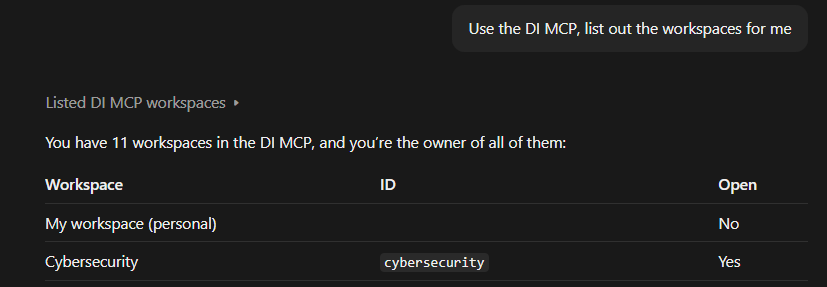

Disconnect
You can disconnect an assistant at any time. In Claude, open the connector and click Disconnect. The Connect an AI assistant page in Meerie also lists your connections.If it does not work
- The address must be exactly
https://di.meerietechnology.com/mcp, with no spaces. - Finish the browser steps. The connector only works after you click Allow.
- If a tool is blocked, check Tool permissions on the connector page in Claude.
What to do next
Follow the MCP guides: ask about a decision, build a model, run simulations, research an input and write a memo.Good to know
- The assistant works on the same decisions you see in the browser. A change it makes is the same record you see there.
- Any accepted change creates a new version of the model. Nothing is edited in place, and earlier runs are marked out of date so you know to run again.
- Treat results as you would from Dave: the numbers come from the engine, not from the AI’s own arithmetic. Ask for the run ID behind any figure.